How to create your first Embed

With Serva, you can easily display your Instagram feed directly on your website. No code knowledge nor maintenance required.
Here’s how to set it up in just a few minutes.
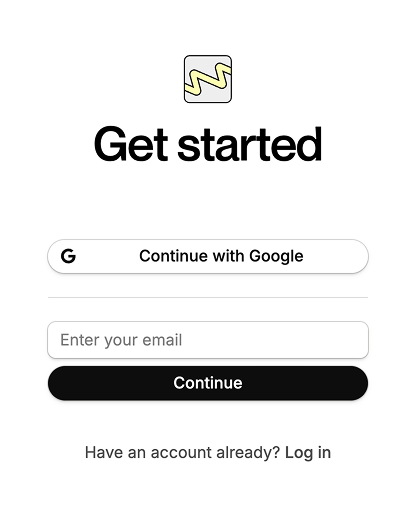
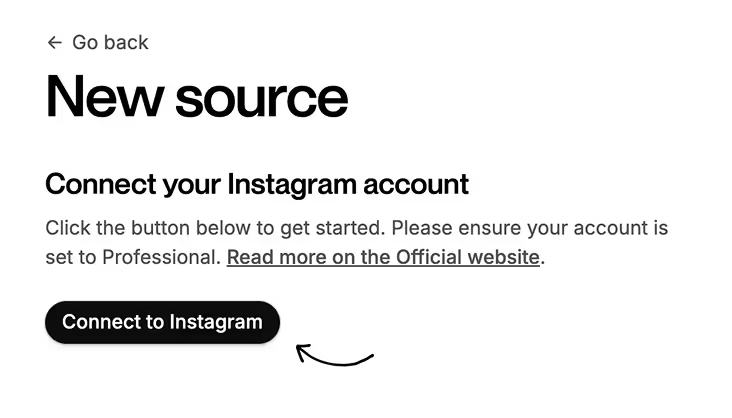
1. Connect your Instagram account
- Log in to your Serva dashboard.
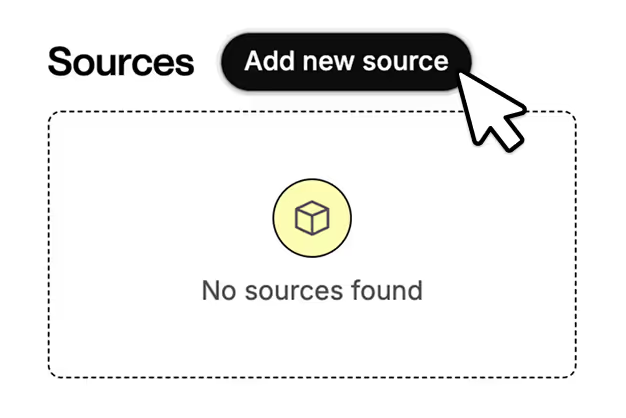
- Click on Add new Source.
- Click on Connect to Instagram and authorize Serva to access your posts.
Your Instagram account must be set to Professional for this step to work.
2. Create a feed
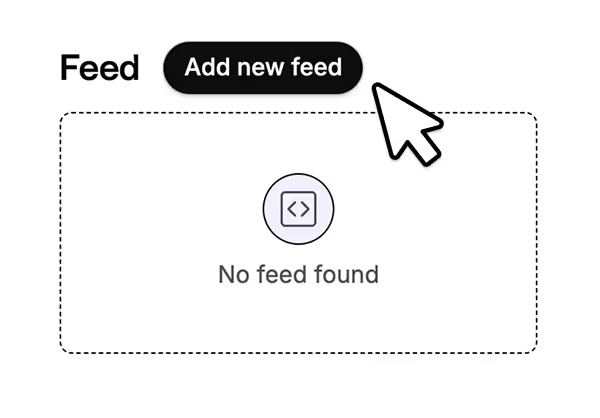
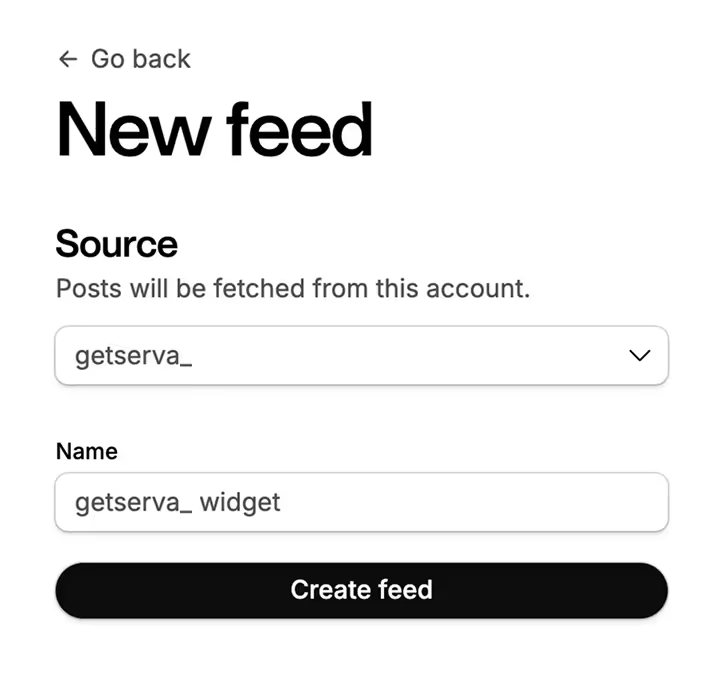
- After connecting Instagram, click Create new Feed.
- Choose which Source (IG account) to display and proceed.
3. Embed it on your site
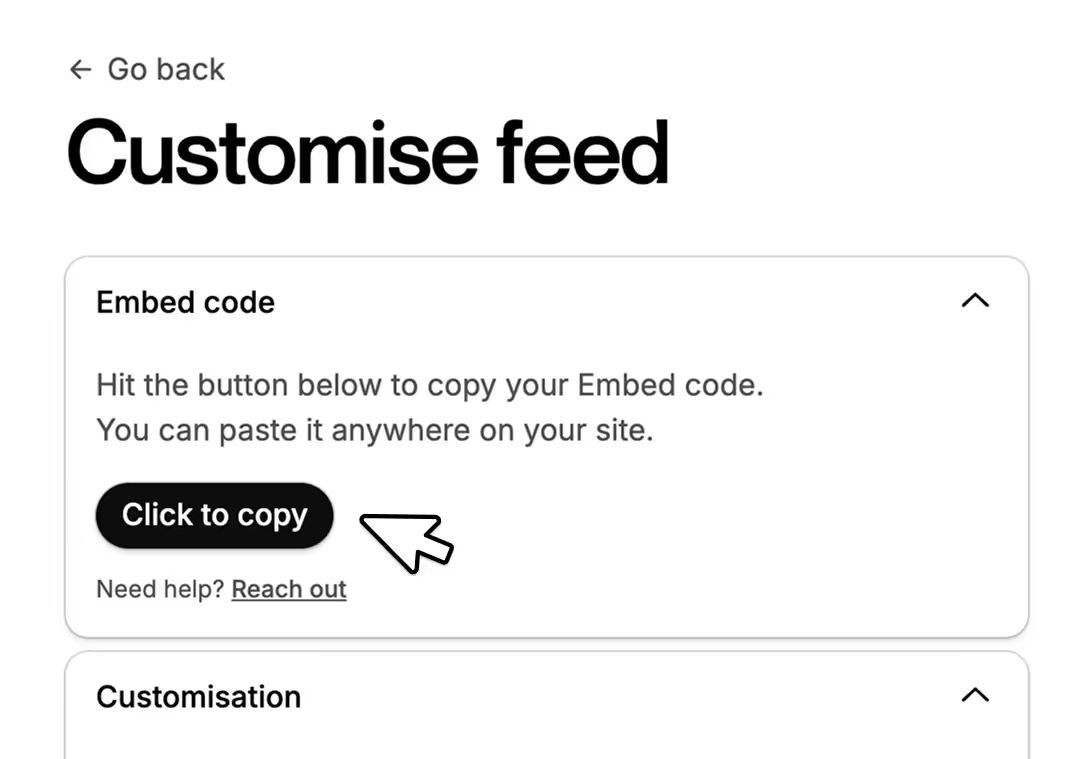
- On the Feed editor page, hit the Click to copy button.
- You can now paste this snippet code anywhere on your site.
- That's it! You now have a live, auto-updating Instagram feed on your site–always synced & fresh.
Need help with the embed code? Check our dedicated article: Using the Serva embed code.
Next: Customize your feed
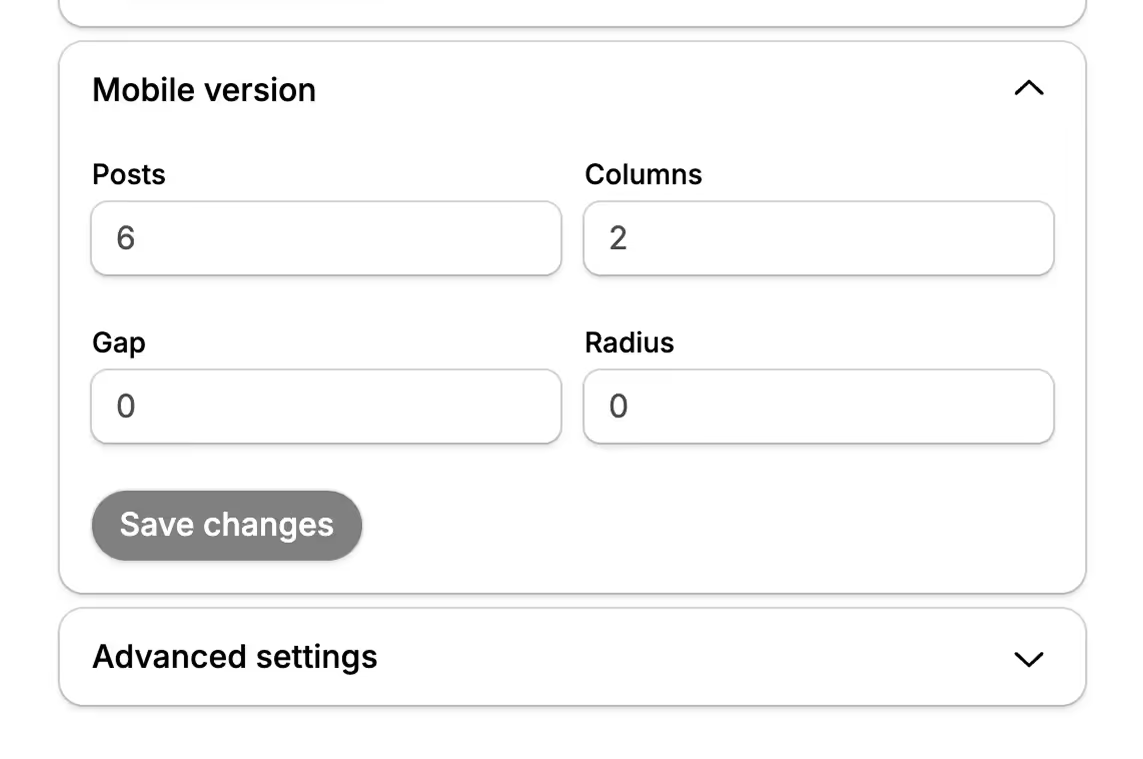
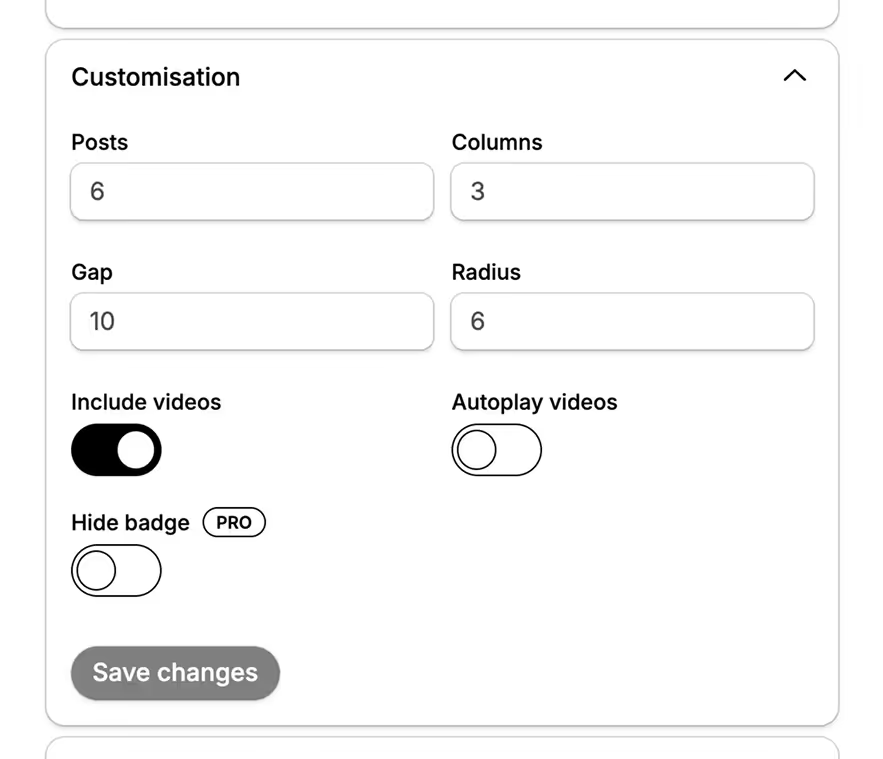
In the Feed Editor, you’ll find several options to fine-tune how your feed looks and behaves — for example:
- Number of posts
- Grid layout (columns, spacing, corner radius)
- Including or autoplaying videos
Once you’re happy with the result, click Save.
Your embedded feed updates automatically — there’s no need to copy or paste the code again.